Learn the SeatPlan.io designer
Each lesson is a short film of the real designer, with the steps written out beside it. Start with your first table, or jump to the tool you need.
1First steps
Build the room: tables, a dance floor, rows of chairs, all in line.
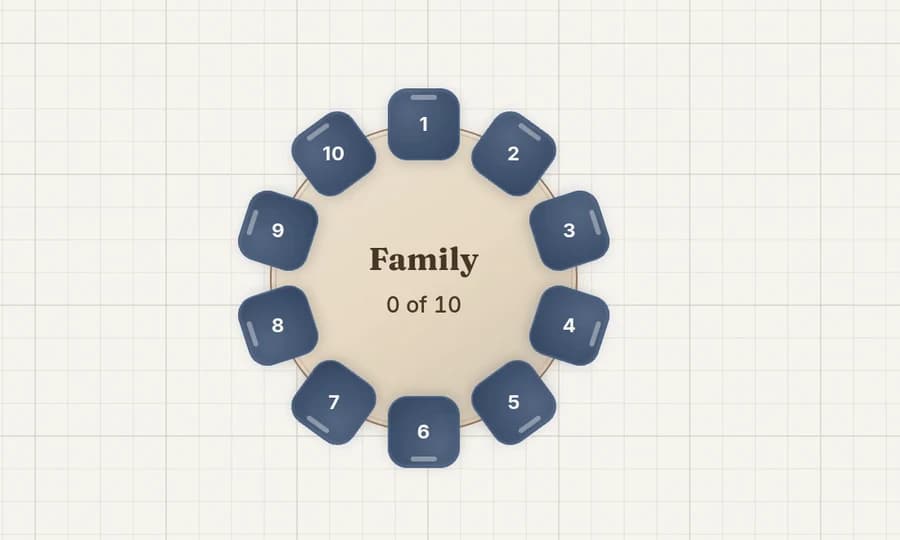 Lesson 1Create your first tableAdd a round table, name it and set its seats in the free SeatPlan.io designer. A short film of the real designer shows every click.
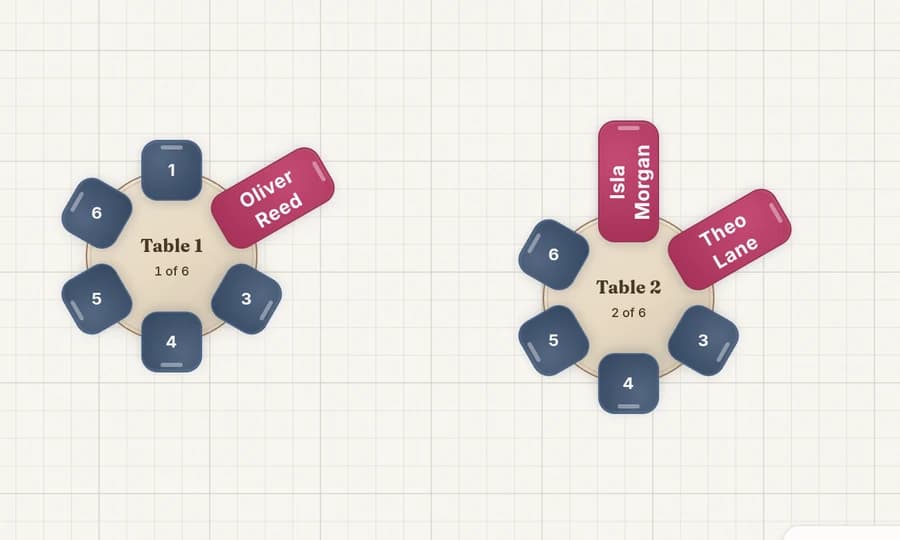 Lesson 2Move a table, or move your viewTwo kinds of drag in the SeatPlan.io designer. Drag a table to move it. Drag empty space to slide the whole plan into view.
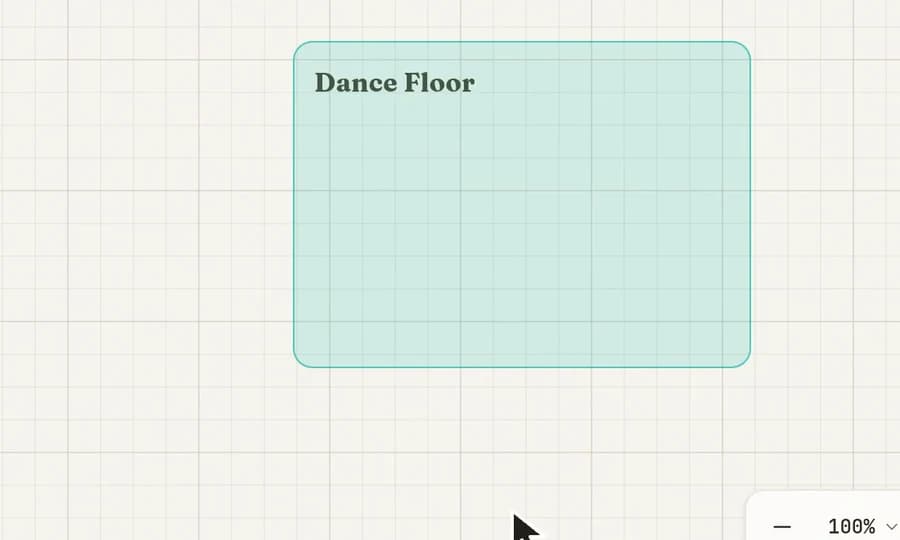 Lesson 3Add a dance floor, stage or barMark the dance floor, stage, bar or buffet on your seating plan. Name the area, pick a color, add it, then drag its corner to size it.
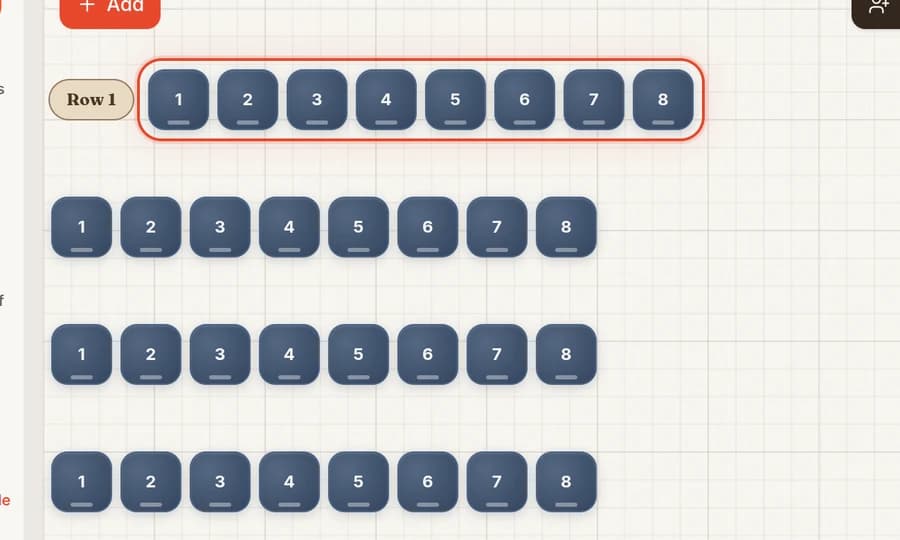 Lesson 4Rows of chairs for a ceremony or talkSet rows and chairs per row and SeatPlan.io places the whole block. Each row stays its own piece, so you can move one without the others.
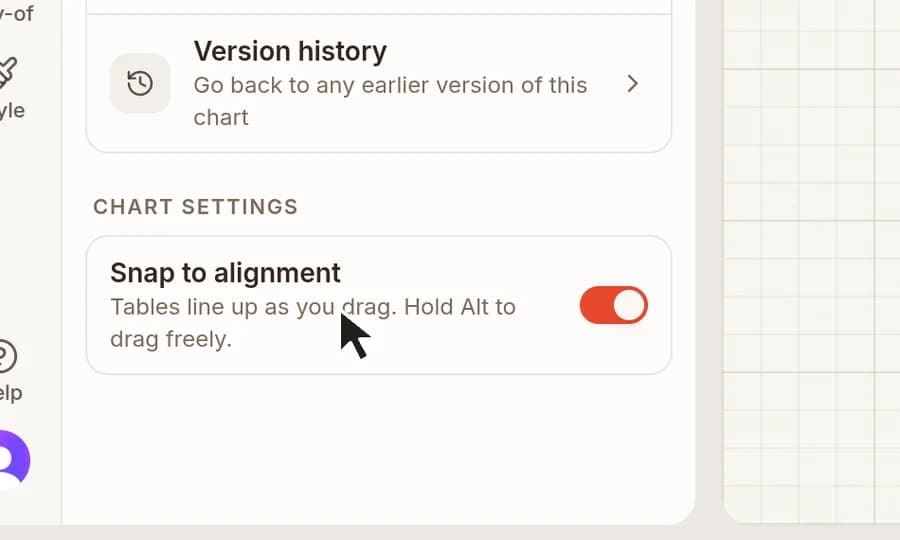 Lesson 5Line tables up with snapDrag a table until its centre lines up with another. A violet guide shows the alignment. Find Snap to alignment under Event, then Chart settings.
2Seating guests
Give every guest a seat, move people around, then look at the room in 3D.
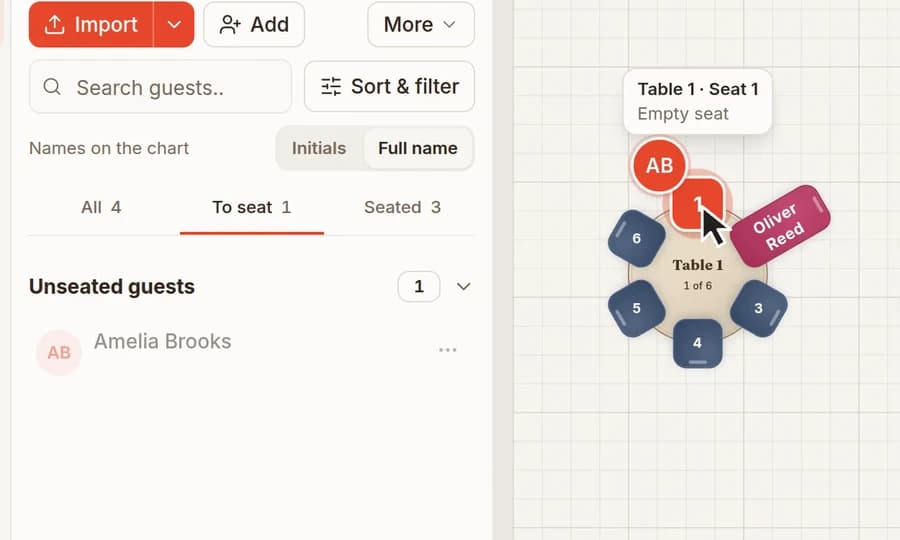 Lesson 6Seat your guestsDrag each guest from the list onto a chair. A marker shows the seat they'll land on, and To seat keeps track of who still needs a place.
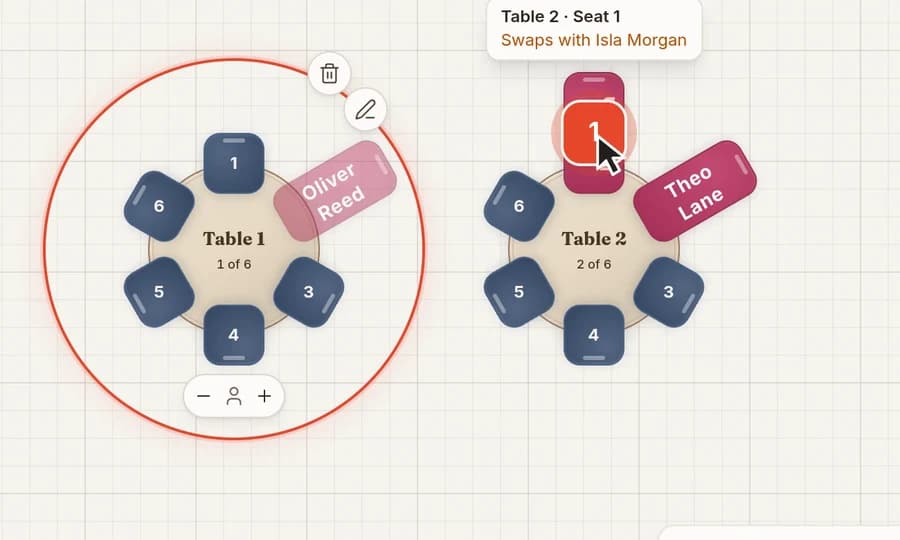 Lesson 7Swap or move seated guestsDrag a seated guest onto someone else's chair and the two swap. Drag them onto an empty chair and they move. Both stay seated.
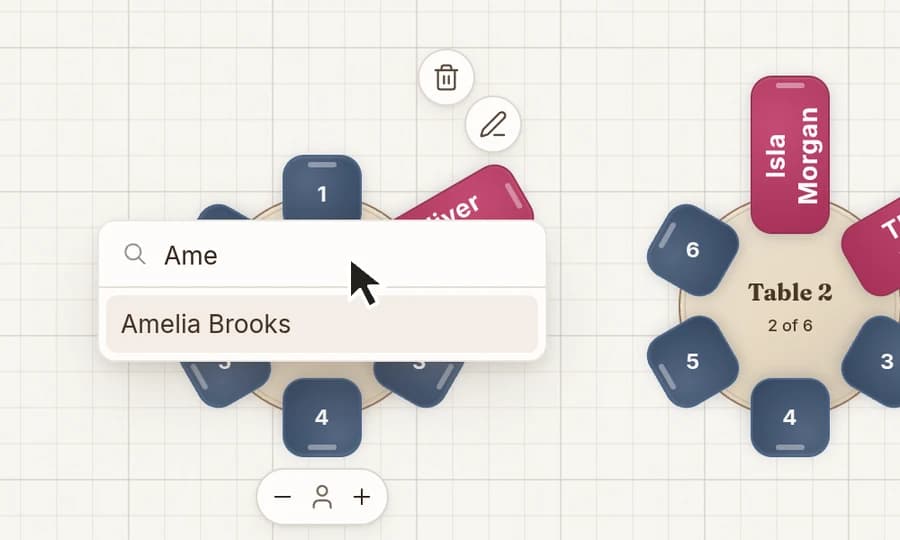 Lesson 8Click a chair, type a nameClick an empty chair, type a few letters and pick the guest. Click a taken chair to open its menu and unseat the guest.
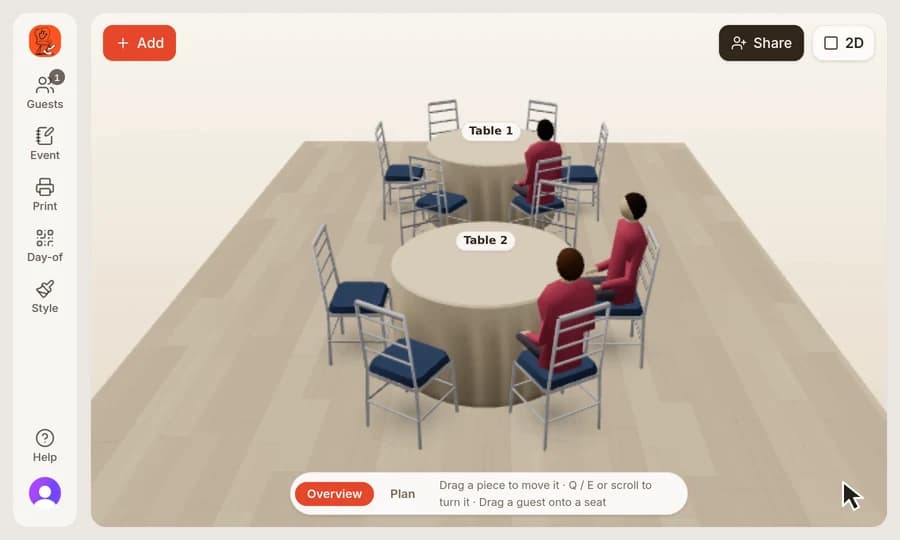 Lesson 9Paid plansBetaSee your plan in 3DClick 3D and your seating plan stands up as a room, with every table, chair and seated guest. Drag the floor to look around. A beta on paid plans.
3Sharing and the day itself
Plan with someone else, go back to an earlier version, print, and help guests find their seats.
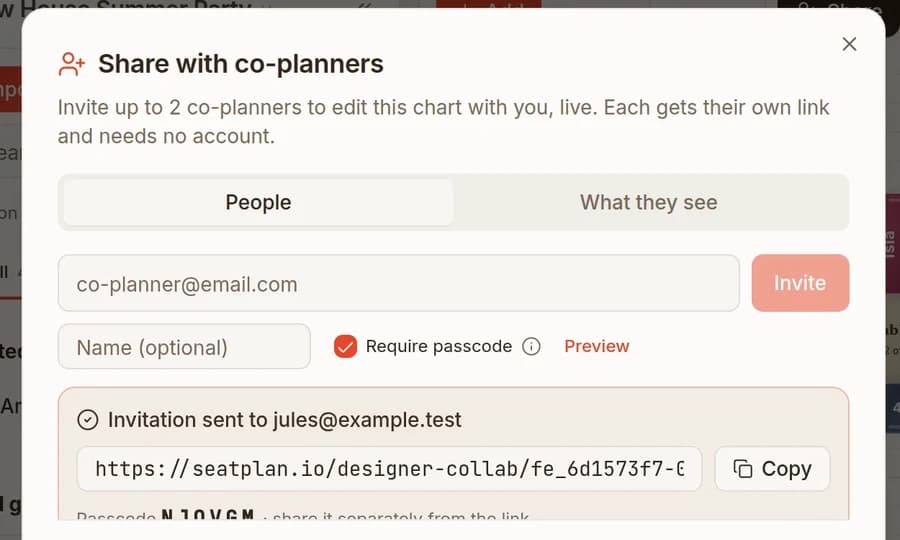 Lesson 10CollaboratePlan together, liveInvite up to two co-planners to edit your seating chart with you, live. Each gets their own link and passcode, and needs no account.
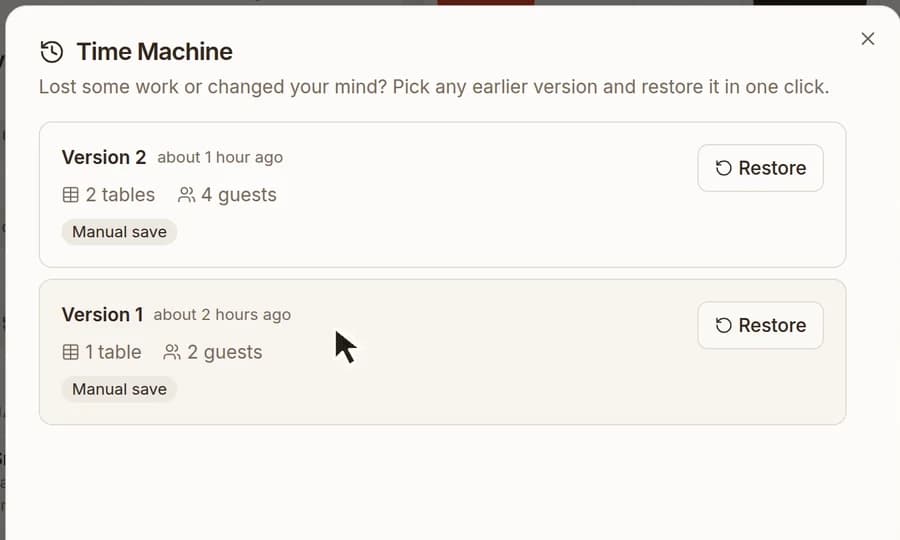 Lesson 11Paid plansGo back to an earlier versionSeatPlan.io keeps earlier versions of your chart. Open Version history, pick a version and restore it. The chart goes back to that version.
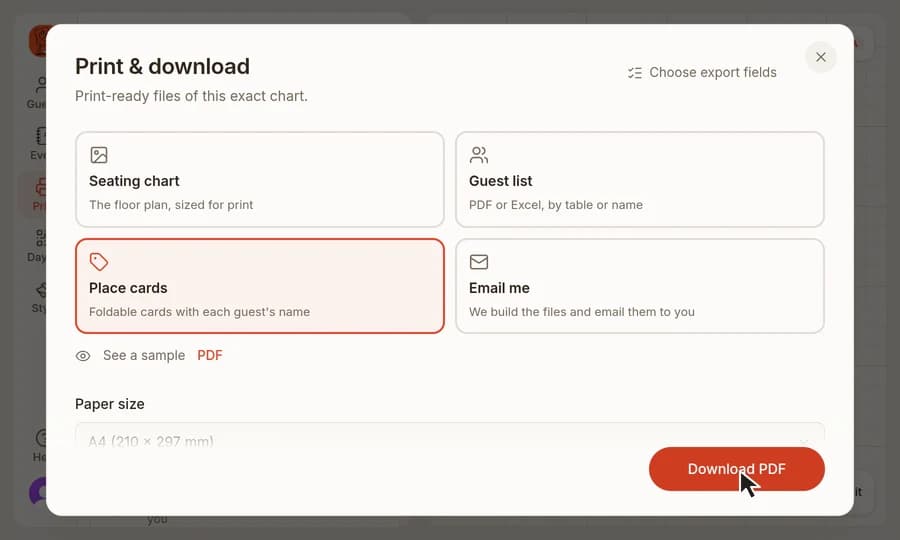 Lesson 12Paid plansPrint your chart, guest list and place cardsDownload a print-ready seating chart, guest list or place cards as a PDF from SeatPlan.io. Pick the file, set the paper size, and download.
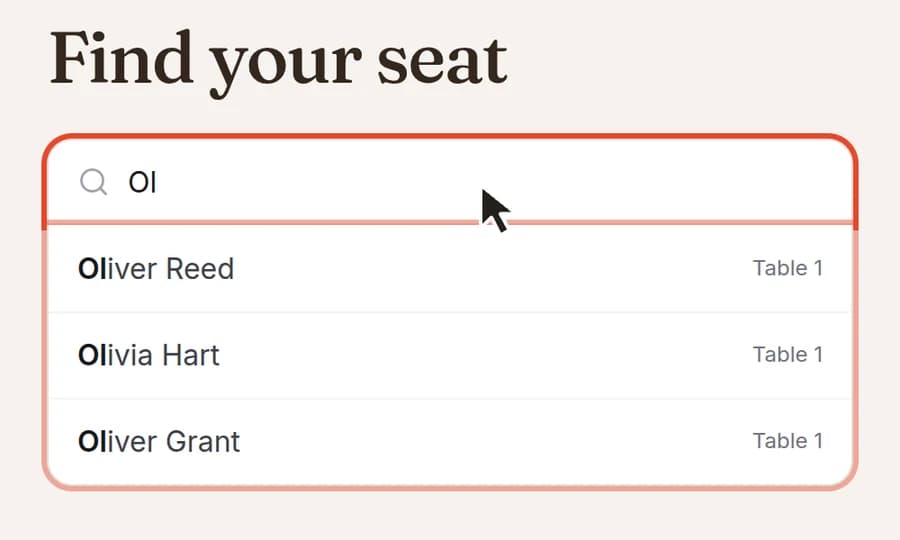 Lesson 13CollaborateLet guests find their own seatsMake a QR seat finder sign in SeatPlan.io. Guests scan, narrow the names as they type and find their table and seat. Set it up from Day-of in the designer.
Your first table takes a minute
Open the designer, add a table and seat a guest. You can come back here whenever you reach a new step.