Guides & Tutorials
Wedding Photo Sharing by QR Code: How Guest Photos Works
Wedding photo sharing by QR code: guests scan the QR on their table, pick their name and tap Share your photos. No app, no account. Here is how it works.
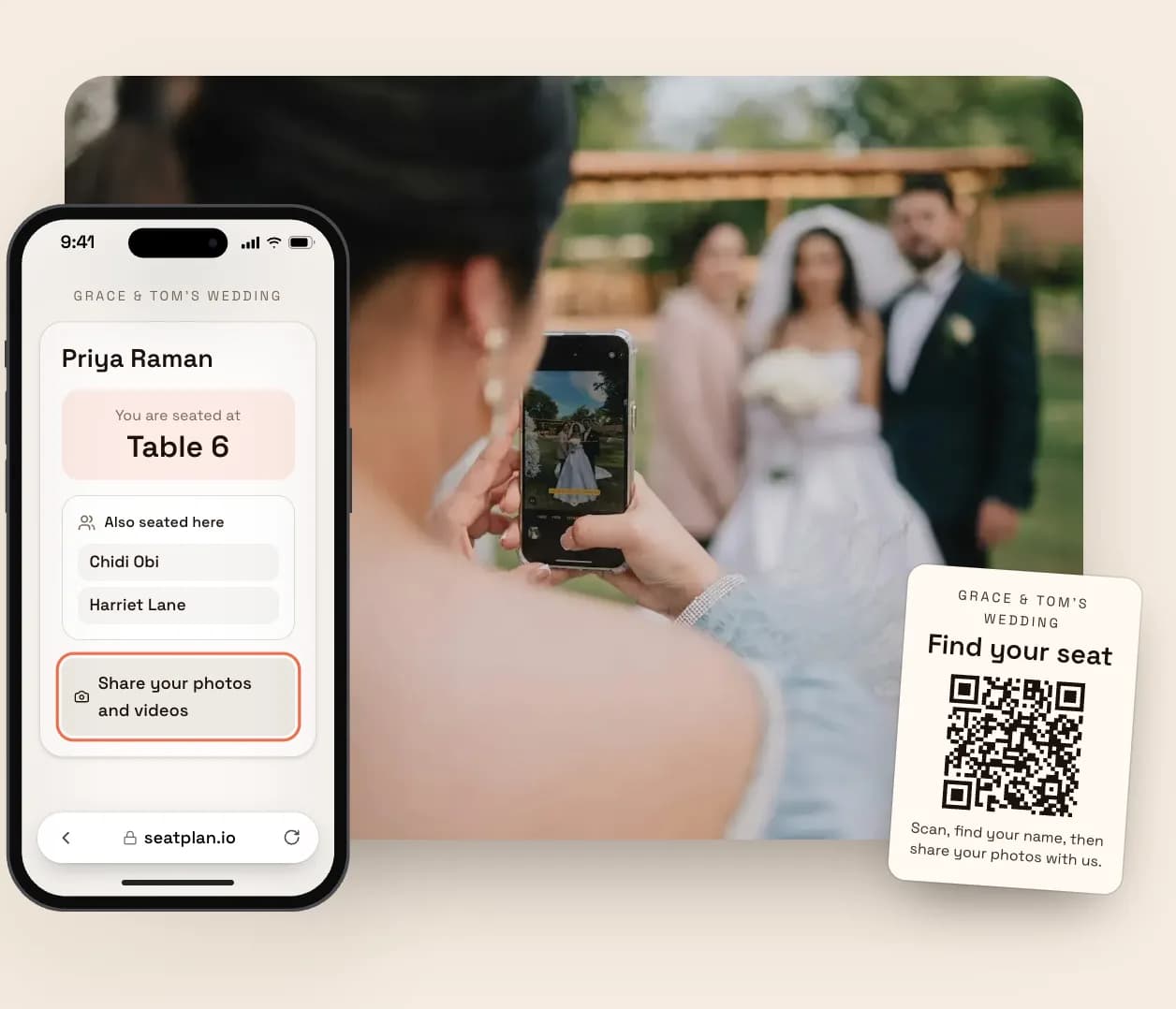
Your photographer will cover the ceremony, the portraits and the first dance. Then the night happens. Someone films the speeches from a great angle, someone else catches your grandmother on the dance floor. All of it sits in their camera roll, or in a group chat, and most of it never reaches you.
Guests don't skip sharing because they don't care. Nobody asks them at the moment their phone is already in their hand, and the usual fix (“download this app and make an account”) asks too much of a guest.
Guest Photos on seatplan.io is built on something you have already set up. If your seating chart has a QR code on the tables, that code now does a second job.
How It Works: One Button on a Page Guests Already Open
On Collaborate, your seating chart comes with a QR code that finds each guest their seat. Guest Photos adds one button to the page that code opens.
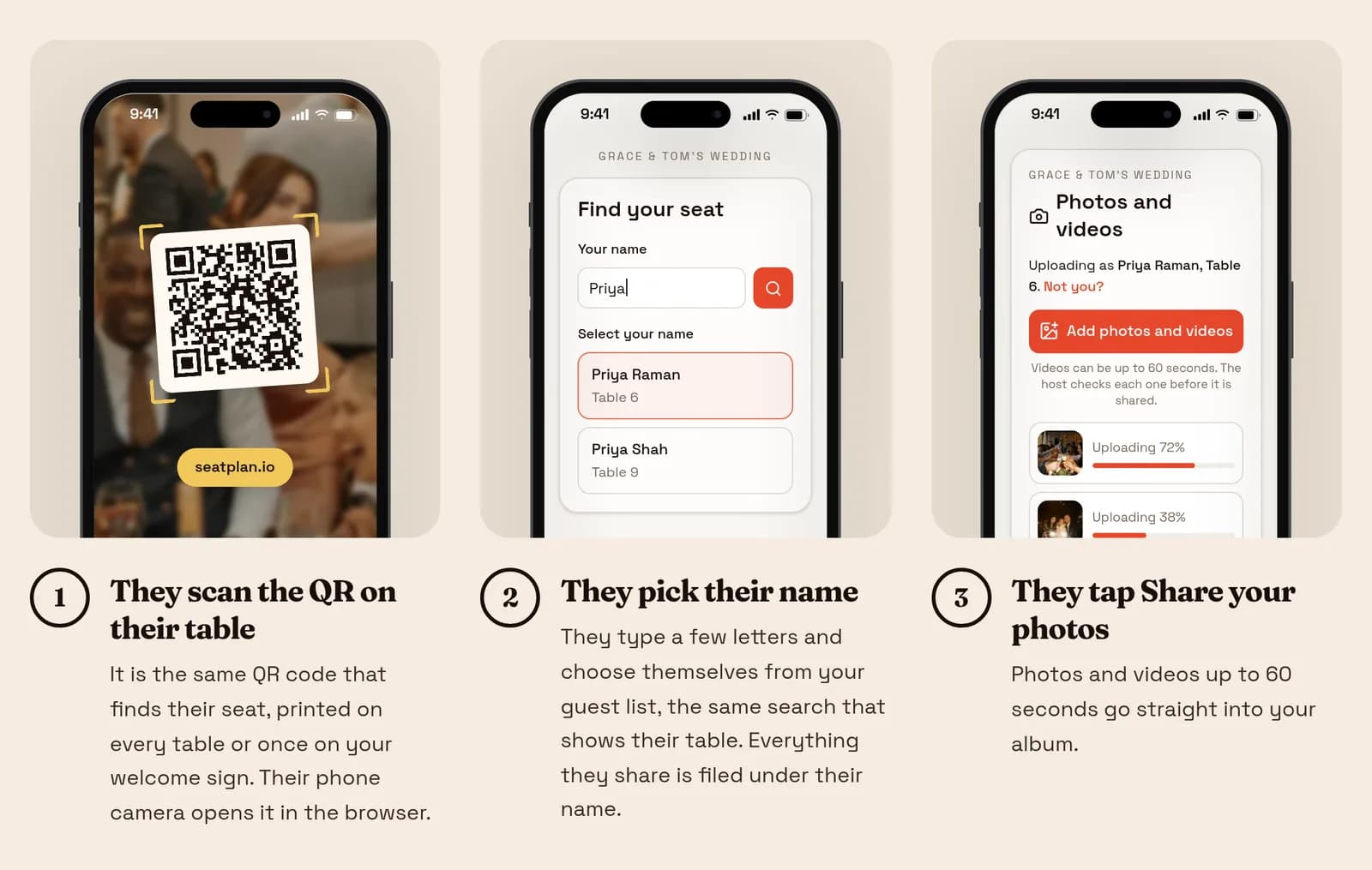
- They scan the QR on their table. It is the same code as your seat finder, printed on every table or once on your welcome sign. Their phone camera opens it in the browser.
- They pick their name. They type a few letters and choose themselves from your guest list, the same search that shows their table.
- They tap Share your photos. Photos and videos up to 1 minute go straight into your album.
Nothing is installed and nobody makes an account. Every upload is filed under the guest who sent it, with their table, so you can later open one guest's photos or filter by table.
During the Party: A Live Wedding Photo Slideshow
Open your album on the venue's laptop, click Photo wall, and the photos fill the screen. You choose the look:
- Slideshow: one photo at a time, drifting slowly
- Mosaic: a wall of photos, one changing at a time
- Polaroid: prints landing on a table
- Filmstrip: one large photo over a moving strip
Only photos you have shared appear, newest first, and a new one shows up within about 20 seconds. A photo you hide leaves the screen within 10 seconds. While uploads are open, a QR code in the corner invites the room to add theirs, so the slideshow keeps feeding itself.
The Morning After: Sorting Hundreds of Photos in One Sitting
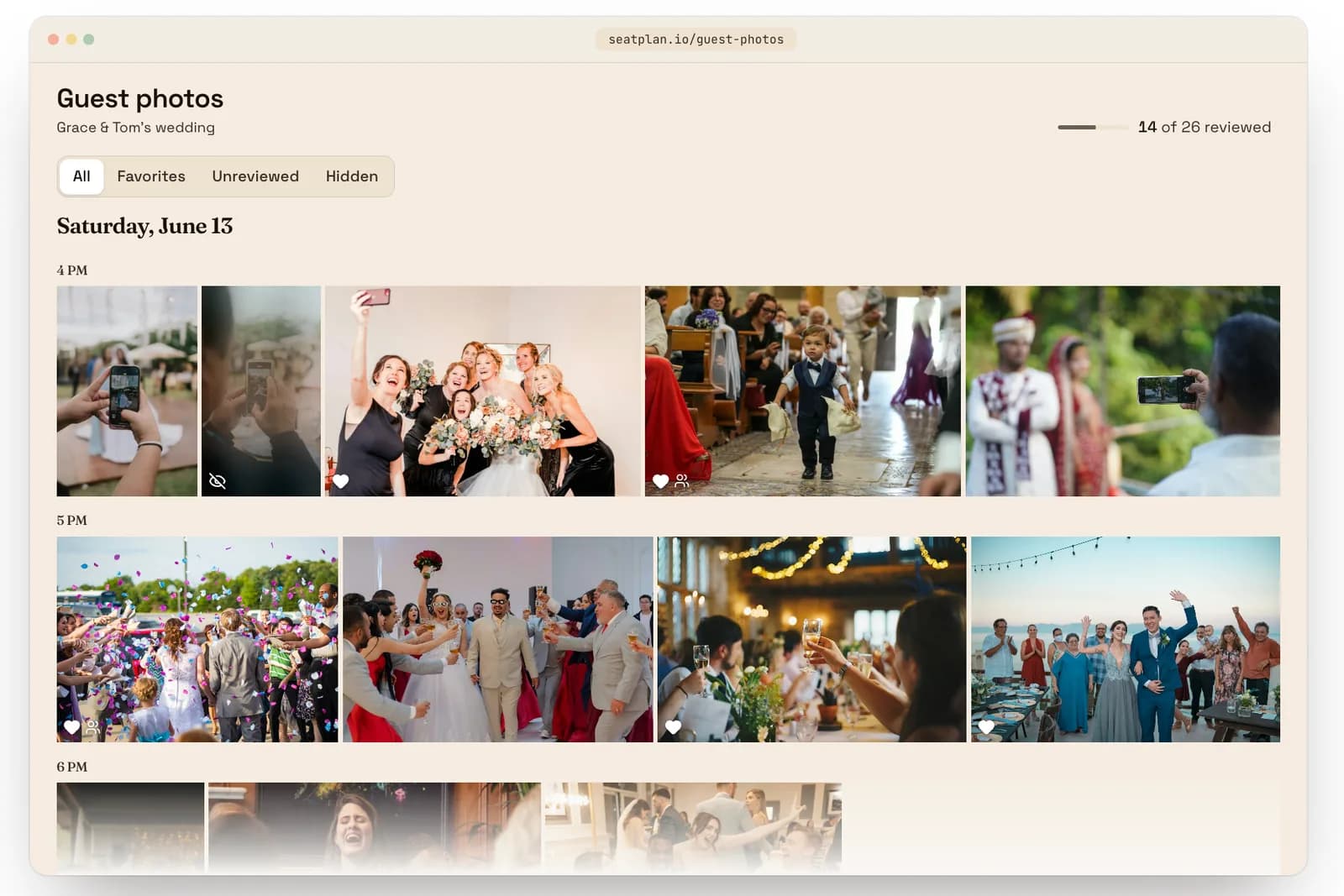
This is where most shared albums fall apart, because 400 photos from 80 phones is a lot of scrolling. The album is designed for fast triage:
- Every guest's photos sit on one timeline, in the order they were taken.
- Open any photo and press F to heart it, X to hide it or S to share it with guests. The next photo is already loaded.
- On your phone, swipe from one photo to the next.
Everything you heart goes to Highlights. Drag your favorites into the order you want, or use Alt and the arrow keys, and pick one as the cover. Guests see the cover at the top of their album, and the photo wall opens on it.
Downloads: Big Enough to Print
Group chats squash photos down to phone-screen size. Your album keeps each photo at print size, and that is the file you download, which is enough for a sharp 10-inch-wide print.
When you click Download, you can choose:
- your favorites as one ZIP, numbered in your order
- everything, with one folder per guest
- everything from one guest
You Stay in Control
Handing your guests an upload button raises an obvious question: what ends up in front of whom?
- Nothing is public until you approve it. Guests see their own uploads and the photos you approve. You see everything and can heart, share, hide, download or remove any photo or video at any time.
- Location data is stripped. GPS and camera details are removed from every photo and video before it reaches your album.
- Files are stored privately. Guests and hosts only get short-lived links to them.
- You can pause uploads whenever you like. Guests can still see what you have shared.
What You Need and What It Costs
Guest Photos is a one-time payment per seating chart, not per guest or per photo, with no subscription. It requires Collaborate, which is a separate one-time payment. You can see the price in your currency on the Guest Photos page.
- Hosting: 12 months, starting at the 11th upload. Your first 10 uploads are for testing, so you can try it before the day without starting the clock.
- Capacity: room for 5,000 photos and 500 videos. Photos can be up to 25 MB, and videos up to 1 minute and 300 MB.
- After hosting ends: you have 30 days to download what you want to keep, then the album is deleted.
- Your table QR: it keeps working for photos even after the chart's own access ends.
What This Replaces
If you are doing any of the following, this is what it is for:
- Asking guests to send photos “to this email” and hoping they remember
- Chasing a dozen separate group chats and cloud links after the wedding
- Printing a hashtag card that half the room ignores
- Asking guests to download a one-off app just to upload photos
Comparing other ways to collect guest photos? See our guide to collecting photos from wedding guests.
Not Just Weddings
Any event with a SeatPlan seating chart and a QR on the tables can have an album: birthdays, anniversaries, christenings, galas and client dinners. At a gala you can filter by table to find every photo.
Planners and venues can add Guest Photos to any event through Event Manager, paid per event at a lower price. You can send your client a magic link, and they can view, download, approve and remove photos without making an account.
Frequently Asked Questions
Collect the Photos While Phones Are Still Out
Add Guest Photos to your seating chart, test it with your first 10 uploads, and put the QR on your tables. The photos your guests take are the ones your photographer can't.
The same QR is how guests find their seat on arrival. See our guide to QR seat finders and wallet passes.
Guest Photos requires Collaborate. Upload and hosting limits apply.
